All players who join your server must have the same mods installed on their Steam client. The game automatically subscribes and downloads mods for joining players, so they just need a working Steam download connection.
How to Install Mods Using the Scourge Panel
ON THIS PAGE
The Scourge Panel lets you install Steam Workshop mods on your Project Zomboid server without editing config files manually. Here is how to use the Mods page.
01
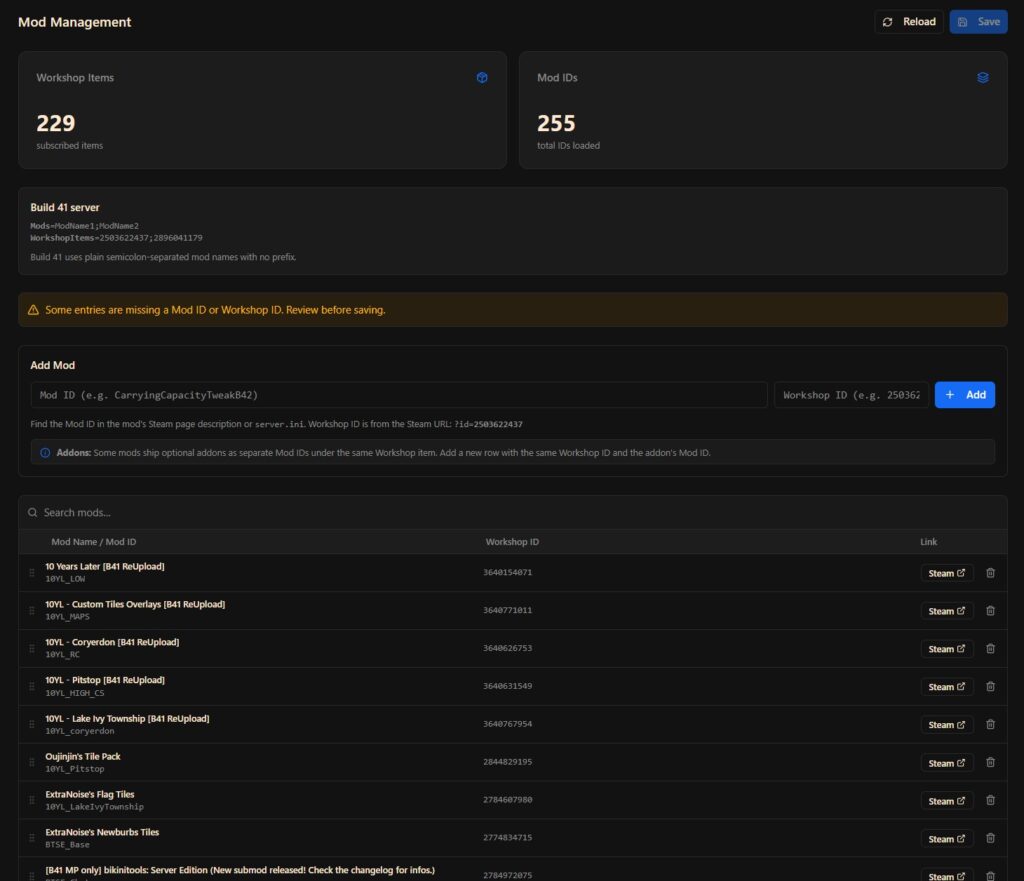
Open the Mods Page
Log in to the Scourge Panel and select your Project Zomboid server. In the left sidebar, click Mods. This page manages all Steam Workshop mods for your server.
02
Find the Workshop ID and Mod ID
Go to the Steam Workshop page for the mod you want to install. The Workshop ID is the number in the URL:
https://steamcommunity.com/sharedfiles/filedetails/?id=2169435993For example, the popular Mod Options (Build 41) mod has Workshop ID 2169435993 and Mod ID ModOptions. The Mod ID is shown in the mod description or info box on the right side of the Workshop page.
03
Add the Mod
On the Mods page, enter the Workshop ID and Mod ID in the provided fields and click Add Mod. The panel writes the correct entries to your server's Mods= and WorkshopItems= config lines automatically - no manual editing required.
Some mods require other mods to function. Check the mod's Workshop page for listed dependencies and add those first.

04
Restart the Server
After adding mods, restart your server from the Dashboard. The server downloads and loads the new mods on startup. Check the server log after restart to confirm all mods loaded without errors.
05
Removing Mods
On the Mods page, find the mod you want to remove and click the remove button next to it. Restart the server after removal. Players who had items from removed mods may notice those items disappearing from their inventory.