Sandbox changes affect new spawns going forward - they do not retroactively change zombies or loot that already exist in the world. For a full reset, combine a sandbox change with a map wipe.
How to Edit Server Config Using the Scourge Panel
ON THIS PAGE
The Scourge Panel includes a built-in config editor with two tabs: server.ini for core server settings and sandbox settings for gameplay difficulty. No FTP or manual file editing required.
01
Open the Config Editor
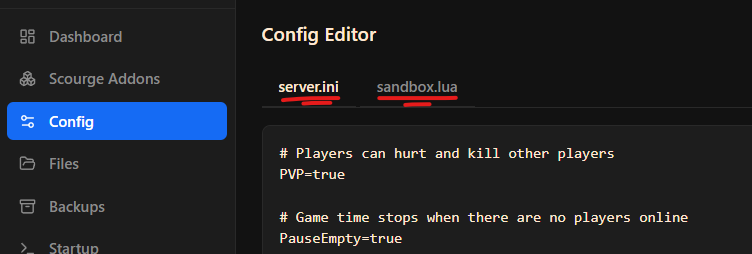
Log in to the Scourge Panel and select your Project Zomboid server. In the left sidebar, click Config. The editor opens with two tabs at the top: server.ini and Sandbox.
02
Edit server.ini Settings
The server.ini tab contains the core server settings:
- Server name and description - what players see in the browser
- Max players - player cap for your server
- Password - set a password to make the server private
- PVP toggle - enable or disable player vs player combat
- Ports - the UDP ports your server listens on (default 16261/16262)
- Global chat - allow or disallow cross-map chat
Make your changes and click Save.
03
Edit Sandbox Settings
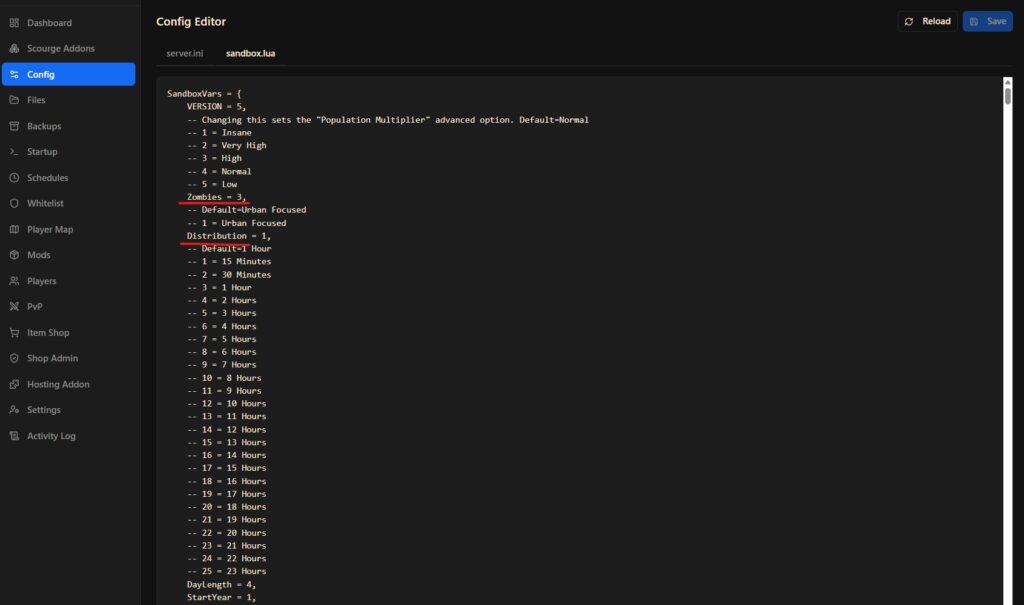
The Sandbox tab controls gameplay difficulty and world settings:
- Zombie count - how many zombies populate the world
- Loot rarity - how common or rare items are
- Day length - how fast time passes in-game
- Zombie speed and strength - how dangerous zombies are
- Safehouse settings - whether players can claim and protect safehouses
- Farming, fishing, and other survival settings
04
Restart the Server
Both server.ini and sandbox changes require a server restart to take effect. If players are currently online, notify them first using the /servermsg admin command before restarting.